How to learn with Packlore · Handouts and Notes
Three chapters: start a course, work through it, take the results with you
Compiled by 干粮官方
Level 1 · Kickoff and mapping: say what you want, get a map
Start a course on your own: answer the kickoff questions, confirm the plan, read and adjust the knowledge map
Start from the home page
Once you are signed in, the home page is your course list. Before you have any courses, there is exactly one thing to do: tap **"+ New topic"**.
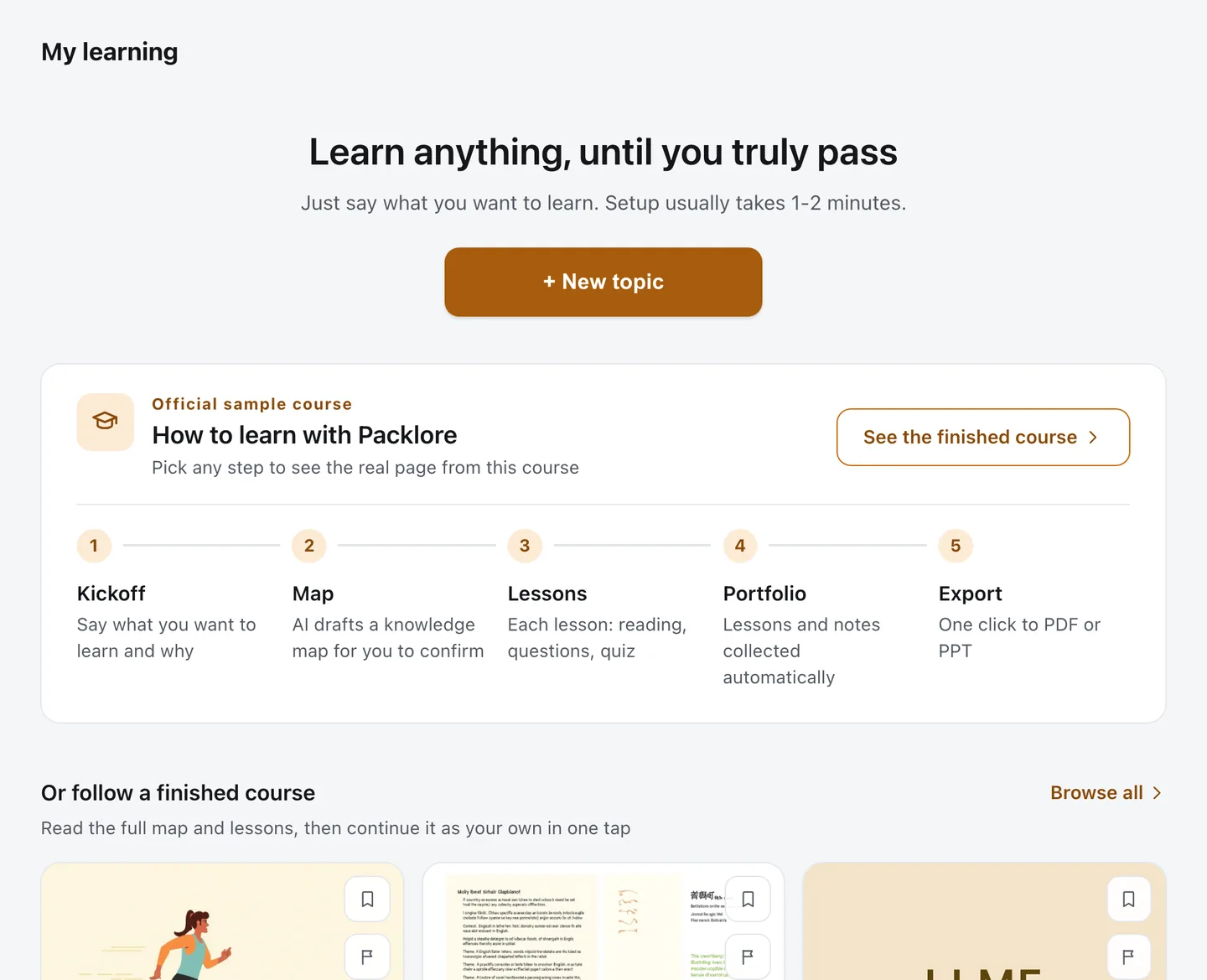
You do not need a course title, and you do not need to bring any material. Packlore writes the title at the end of the kickoff, from your own answers, and researches the sources itself. All you need is something you want to understand, even if it is one sentence.
The card underneath the button - **Kickoff, Map, Lessons, Portfolio, Export** - is the whole arc of a course, and it is also the order of this guide: chapter 1 covers kickoff and mapping, chapter 2 covers lessons, chapter 3 covers the portfolio and exporting. Each of those five steps is a link into this very course, so you can jump straight to the real page for any of them.
Only one course can sit in the kickoff stage at a time. If you started one and never finished answering, tapping "+ New topic" again will tell you so and take you back to it.
Answer a few questions
The first card does not ask *what* you want to learn. It asks **what this is for**: an interview, work you need to get up to speed on, an exam, plain curiosity, a problem in everyday life, or a book you want the framework of.
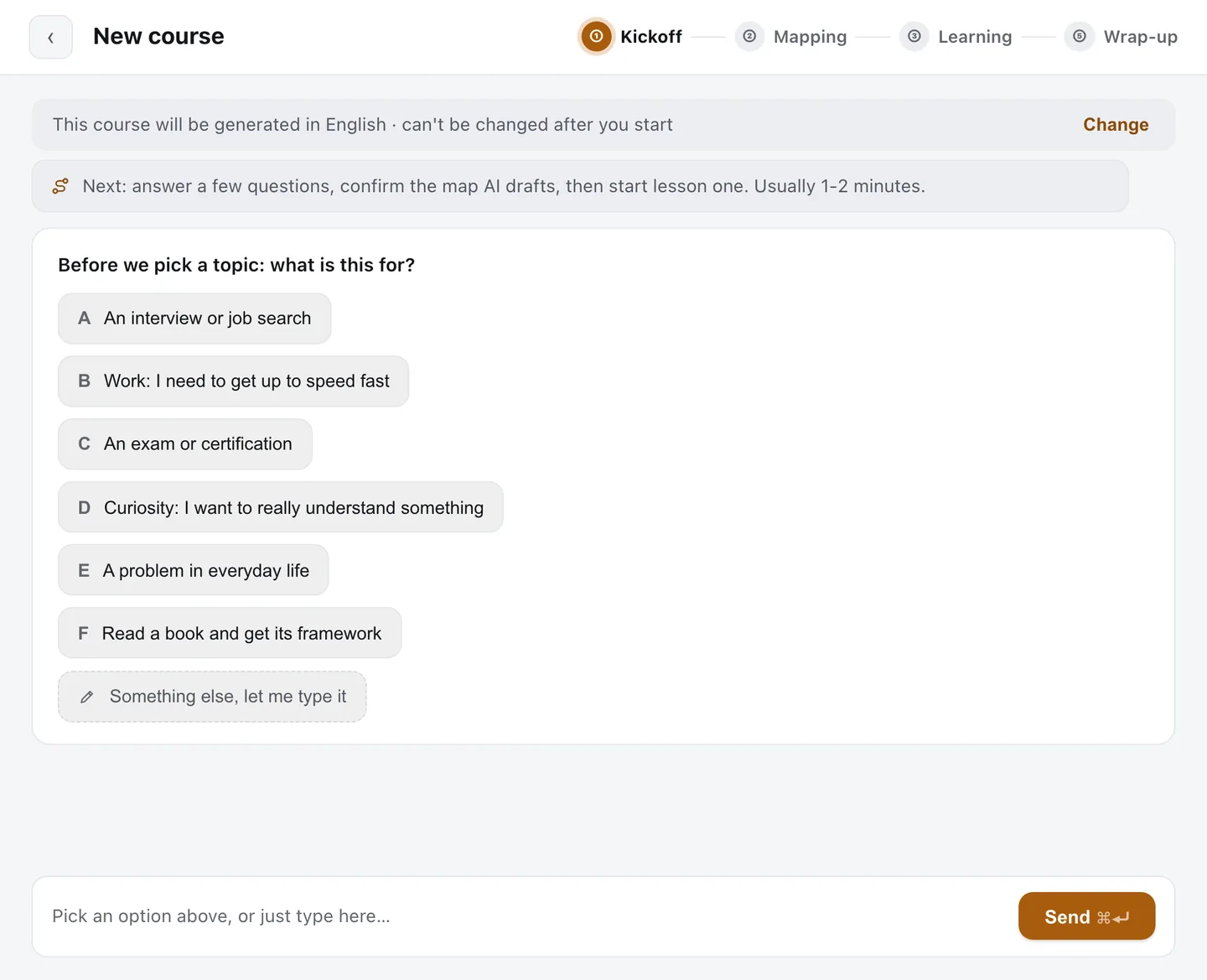
Purpose comes first because the same subject is taught completely differently depending on it. For an interview, the course works backwards from the job description. Out of curiosity, it can start wherever the subject is most interesting.
Then say what you want to learn. Tap one of the suggestions, or type it yourself in the box at the bottom and hit **Send**. The more specific, the better: "I want to understand how large language models actually work. I don't have a technical background, and I'd like to be able to explain them to my teammates."
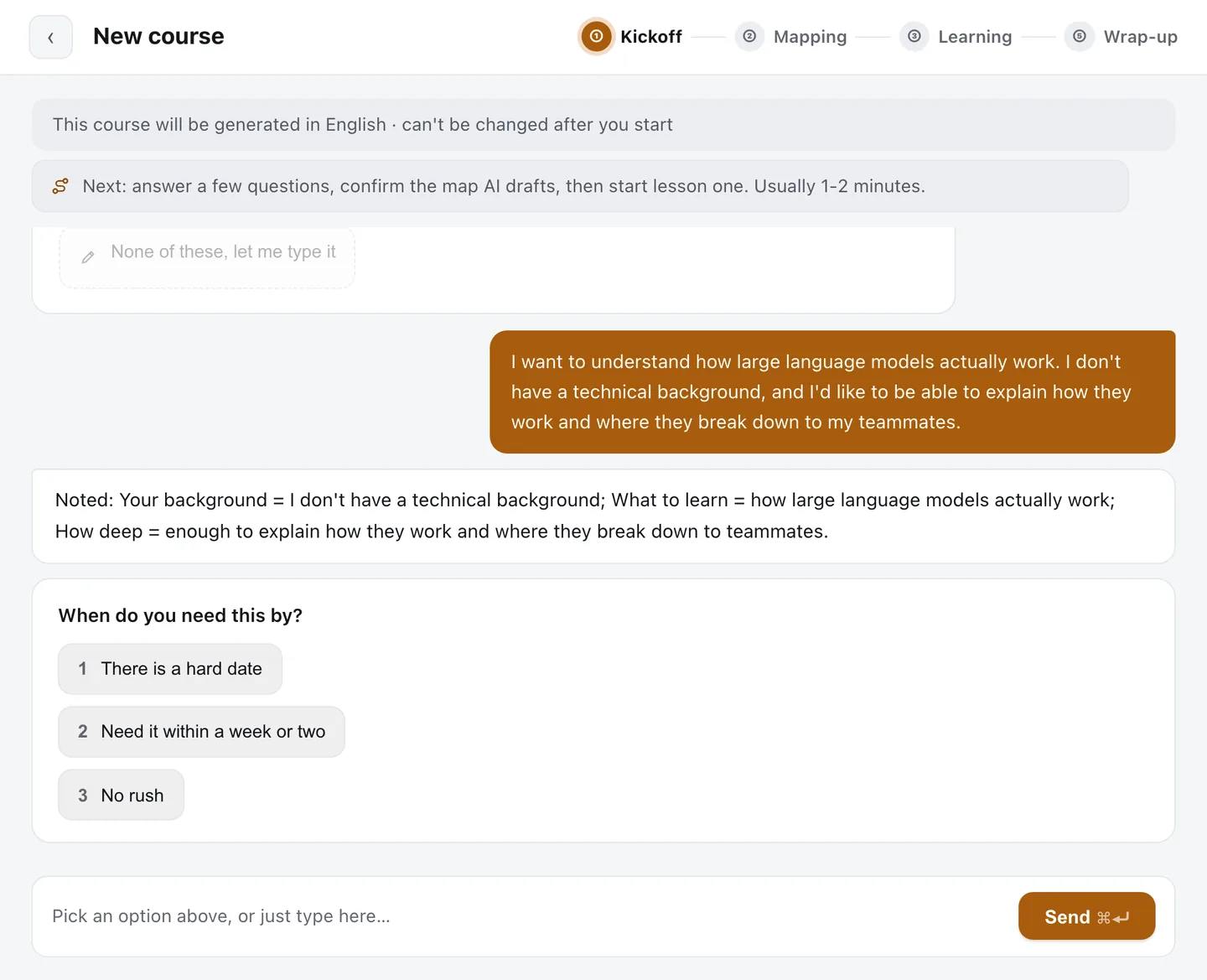
Look closely at its first reply. It **plays back what it heard** - your background, what you want to learn, what you want to do with it. Whatever you covered in your own sentence, it will not ask again. What you left out, it asks about, usually:
- when you need it by (a hard date, within a week or two, no rush)
- where you are starting from, or how deep you want to go
- what you will use it for
Every question takes an option or your own words. The whole thing is usually a minute or two.
Confirm the facts and the plan
When the questions are done, Packlore does not just start. It lays out everything it has on a confirmation card first.
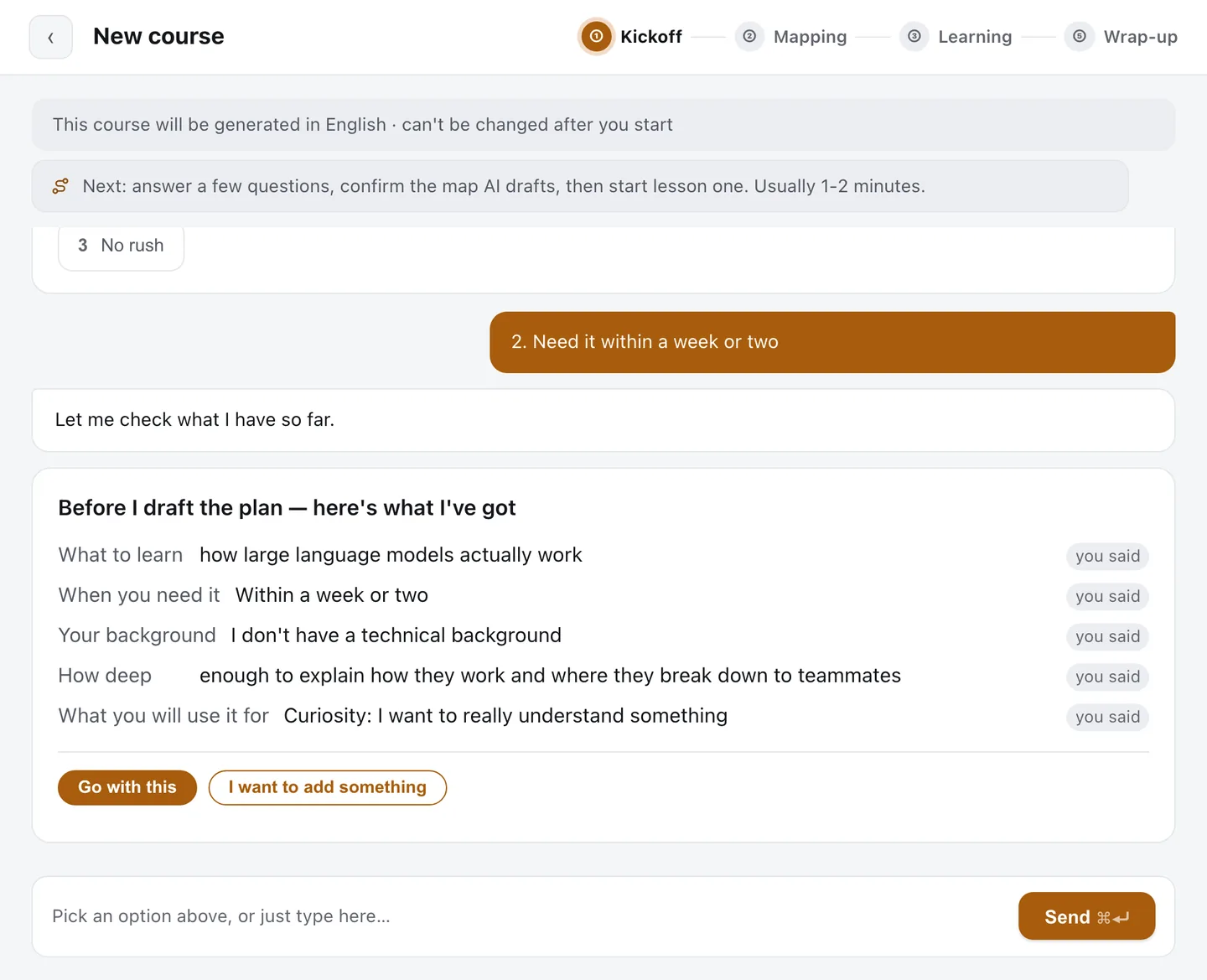
The **"you said"** tag on the right of each line means that fact came from your own words, not from a guess. If something is off, tap **"I want to add something"**. If it looks right, tap **"Go with this"**.
If what you want to learn is too big to finish in the time you have, it will suggest narrowing down first:
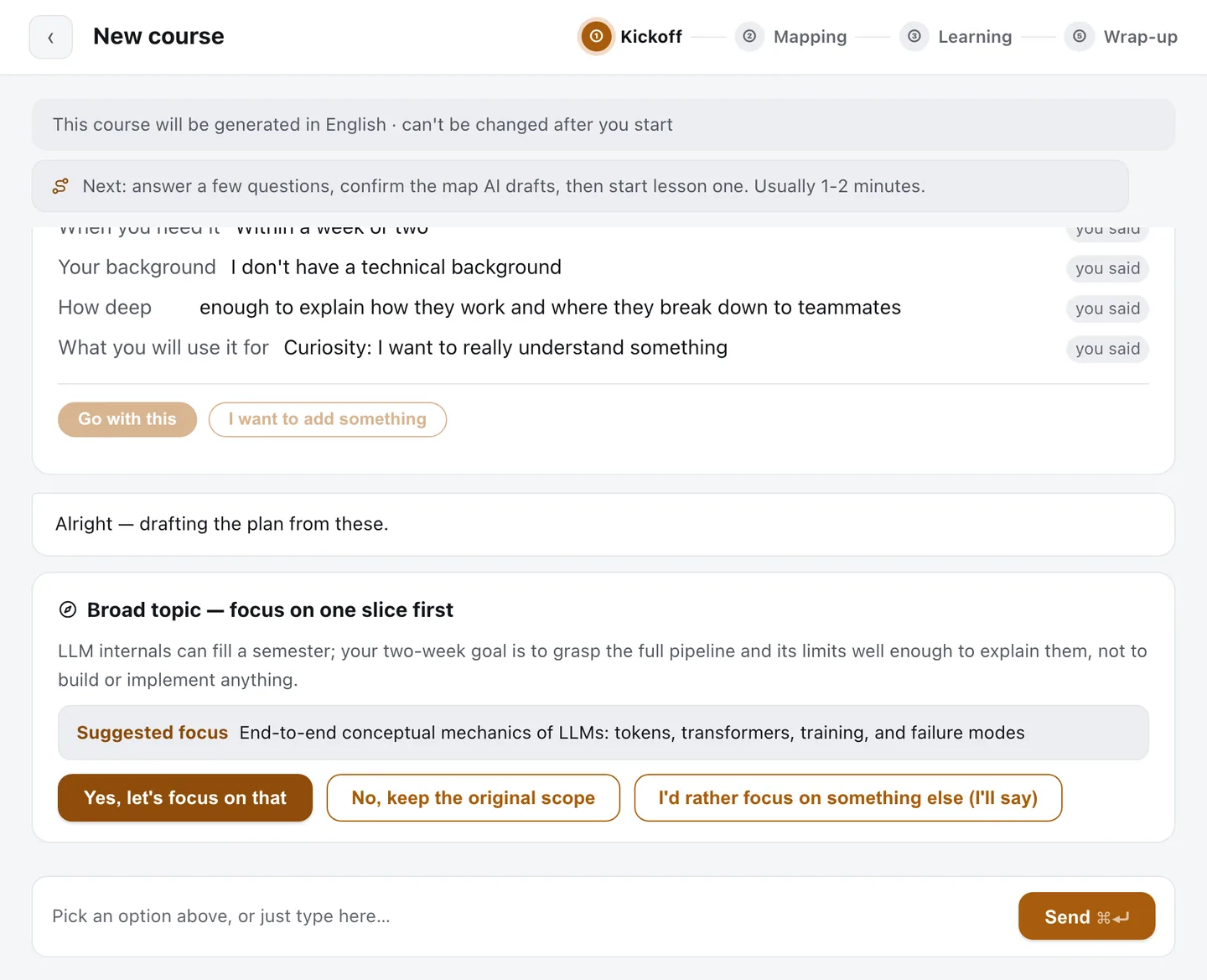
The three buttons are: take the slice it suggests, keep the scope you had, or name a different slice yourself. This step is not there to limit you. It is there to stop you walking away with a map you cannot finish in two weeks.
Next comes the **plan**:
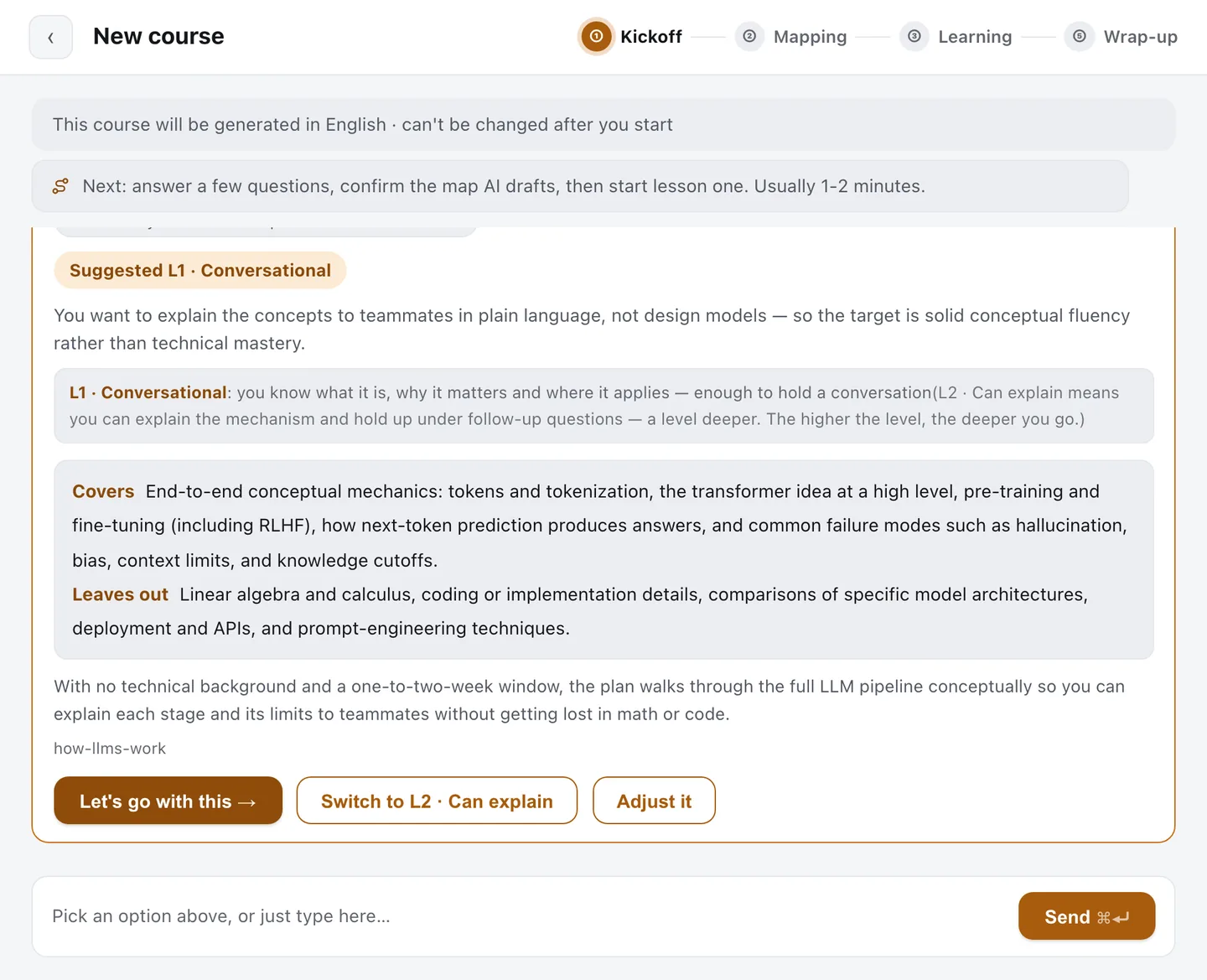
Three things on this card are worth a careful look:
- **How deep you go.** **L1 - Conversational** means you know what it is, why it matters and where it applies, enough to hold a conversation about it. **L2 - Can explain** means you can lay out the mechanism and hold up under follow-up questions. The higher the level, the deeper each chapter goes and the sharper the questions get. Packlore suggests one, and the card has a one-tap "Switch to L2" next to it.
- **Covers.** What this course is about.
- **Leaves out.** What has been deliberately put outside it. This line matters as much as the one above: it is what keeps the map from wandering.
Happy with it? Tap **"Let's go with this"**. Want changes? Tap **"Adjust it"** and say what to change. Once it is confirmed, the course title, one-line summary and cover are generated for you, and you tap **"Build the knowledge map"**.
A map you can change
Mapping usually takes a few minutes and is the longest wait in the whole course. While it runs, the page tells you honestly what it is doing:
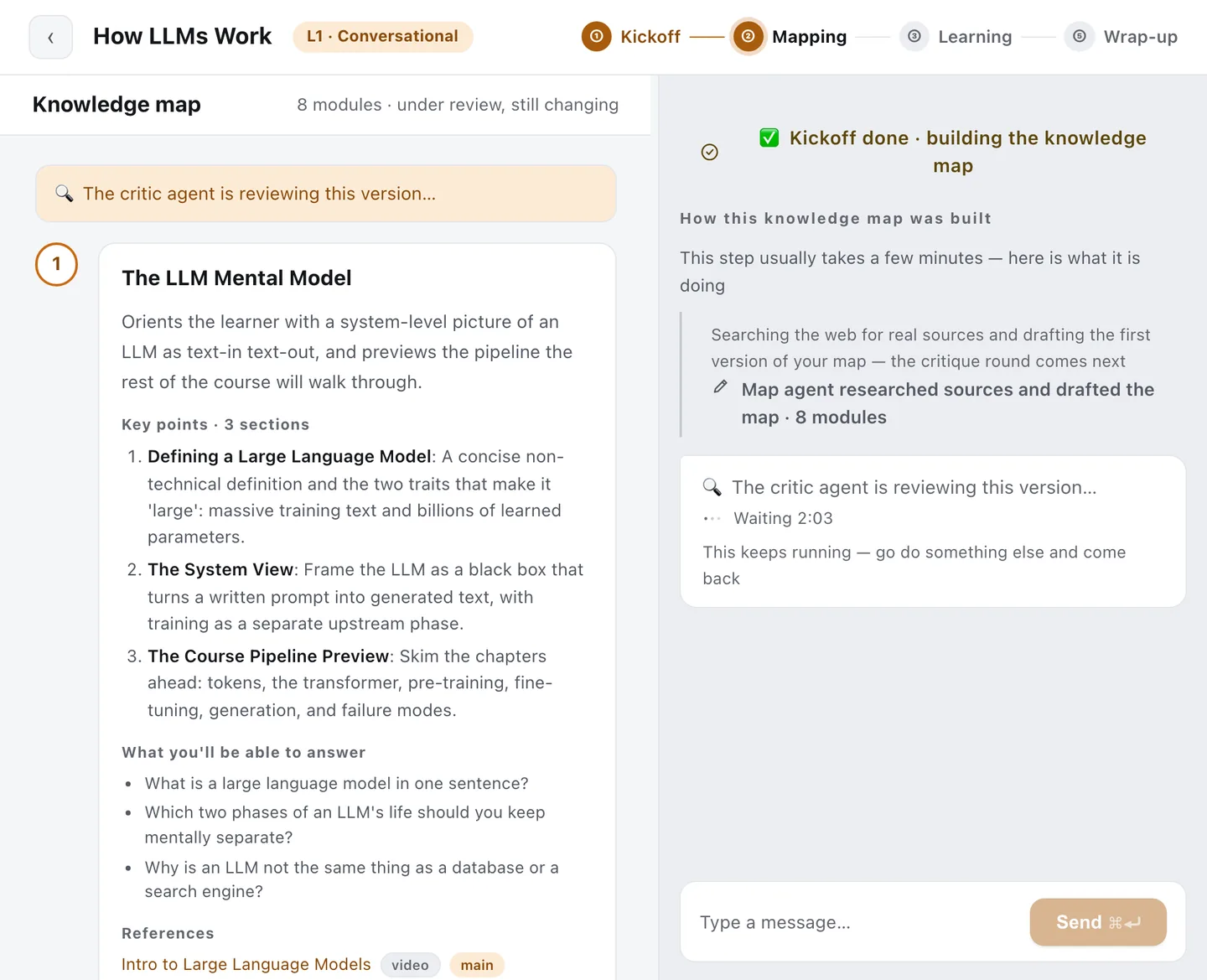
There are three passes. One AI searches the web for real sources and drafts the map. A **separate critic agent** then goes looking for what is wrong with it - its job is to find flaws, not to please you. Then the map is revised against that critique. You can open up any round and read what was raised. You can leave the page while this runs; it keeps going.
When it is done, the map is on the left and the conversation on the right:
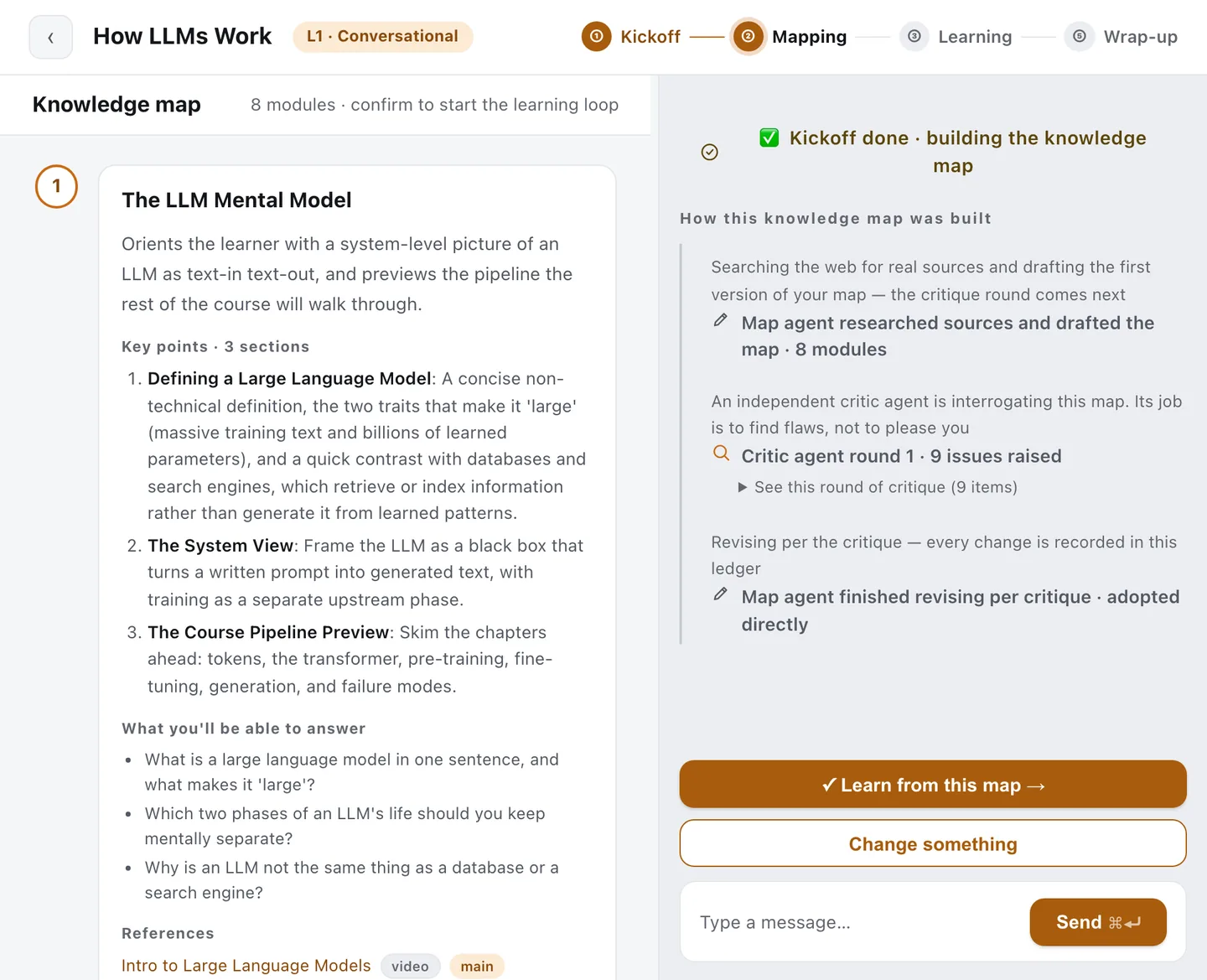
Every chapter on the map states four things: what it answers, how many sections it splits into, **what you'll be able to answer** once you have done it, and which sources it drew on. The fastest way to judge a map is to read the "What you'll be able to answer" lines. If those are the questions you came with, the map is right.
If it is not, there are two ways to change it:
- Tap **"Change something"**, or just say it in the box: "six chapters is too many, cut it to three", "I already know chapter 2, drop it". Packlore replies with a **change plan** for you to confirm, and only edits the map after you accept it.
- Iterate as many times as you like, until you tap **"Learn from this map"**.
Once the map is confirmed, kickoff and mapping are over. What comes next is chapter 2: working through it, one chapter at a time.
Study notes
Three things to remember from this chapter
- **You do not need a title or material.** Tap "+ New topic" and bring one thing you want to understand. The title, summary and cover are all generated after the kickoff.
- **The kickoff is alignment, not an exam.** Packlore plays back what it heard and puts it on a confirmation card for you to check. In the plan, "what is out of scope" matters as much as what is in it, and if the subject is too big it will suggest a slice first.
- **The map is editable.** Judge it by the "What you'll be able to answer" lines. If it is wrong, say so - it writes a change plan and waits for your yes.
The buttons, word for word
- Home page: "+ New topic"
- Confirmation card: "Go with this" / "I want to add something"
- Plan card: "Let's go with this" / "Adjust it"
- Map: "Learn from this map" / "Change something"
Level 2 · Working through it: lessons, follow-ups, quizzes
Get through a whole chapter: read the lessons, answer the follow-ups and the quiz, and know where your notes and missed questions live
Reading the learning page
After you confirm the map you get an overview of the course: how many chapters, how many lesson sections, how many self-check questions, and what chapter 1 will let you answer. Tap **"Start Module 1"** to begin.
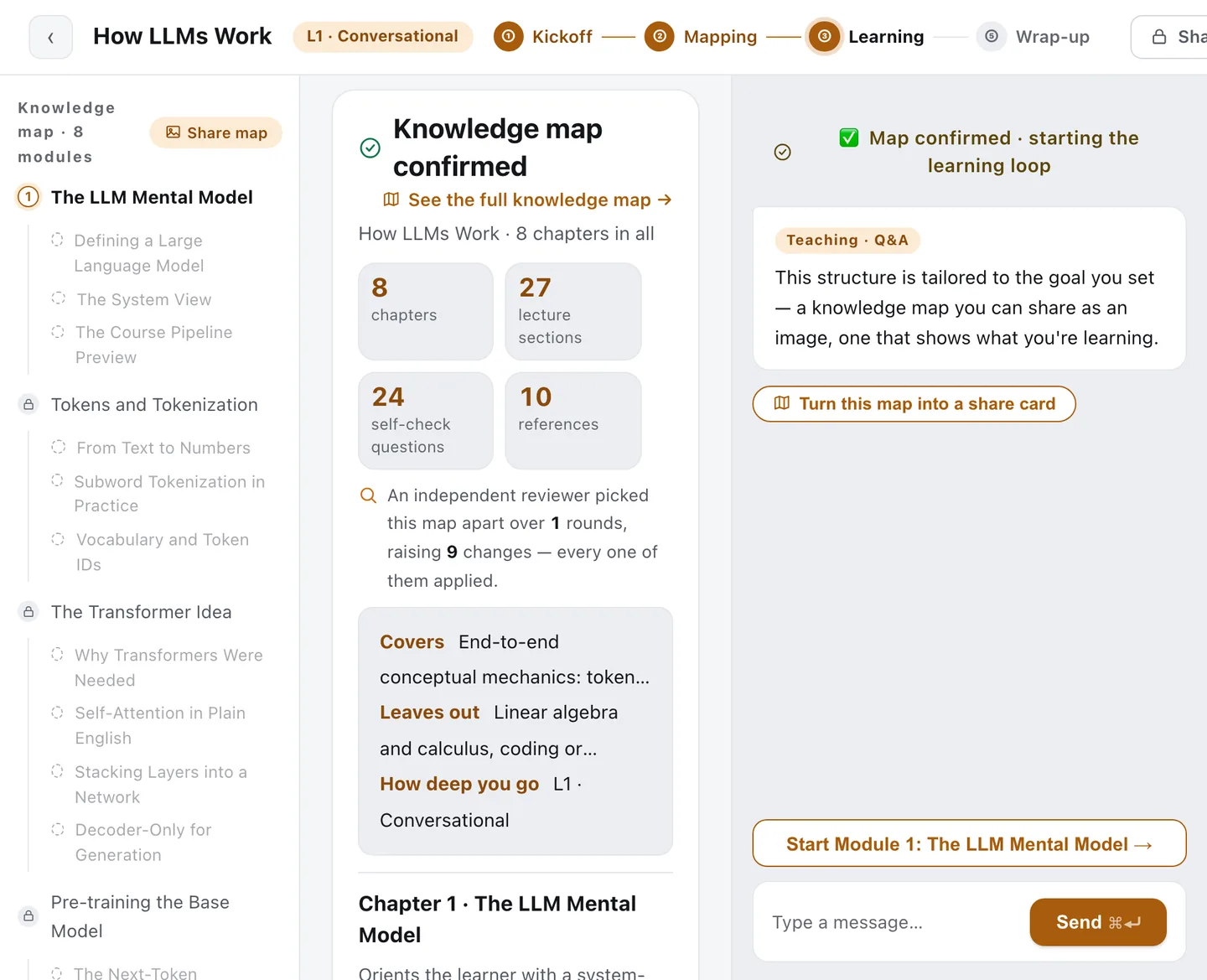
The page has three parts:
- **Left: the map and your progress through this chapter.** The map lists every chapter and its sections, so you can go back to anything you have covered. The progress list shows where you are in this chapter: the lesson (in however many pieces), the Socratic questions, the quiz, your notes, your missed questions.
- **Middle: the lesson.** The current piece, with its diagrams.
- **Right: the conversation.** This is where Packlore asks questions, reacts to your answers and takes yours. The box at the bottom is open the whole time.
Along the top, **Kickoff, Mapping, Learning, Wrap-up** mark where you are in the course as a whole.
Lessons arrive in pieces
A chapter's lesson is not handed to you as one long text. It is written **a piece at a time**, roughly a minute or two per piece, and the page shows you what it is doing: drafting, fact-checking, revising, laying out the diagrams. Every piece goes through an independent check before it reaches you.
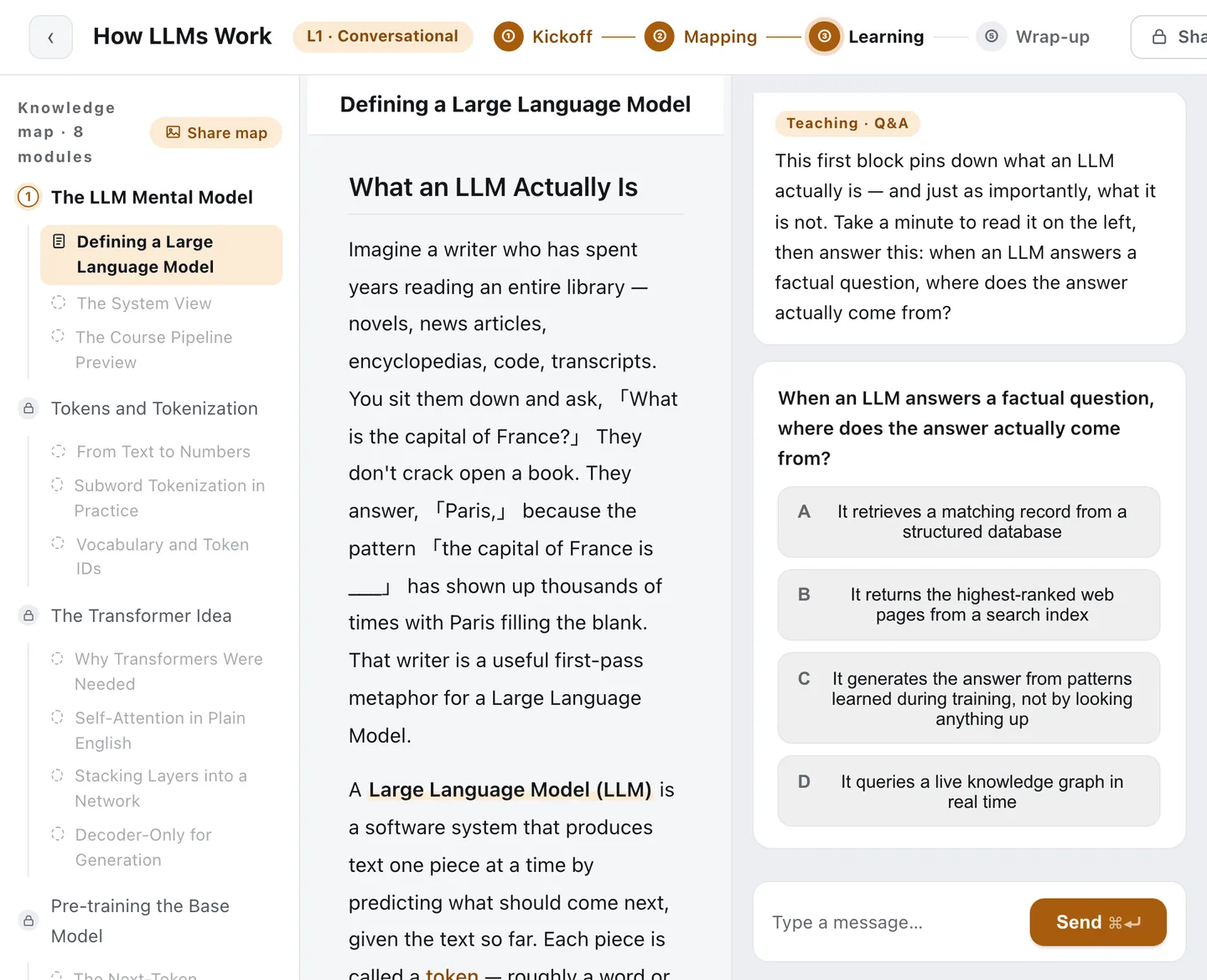
After each piece there is a short question in the conversation, to confirm you caught the point of it. Packlore reacts to your answer, and then you have two choices:
- **"Got it, continue"** - on to the next piece.
- **"I have a question..."** - ask about this piece. Ask as much as you want; it does not affect your progress.
At the top of the lesson you can switch between **Summary** and **Full text**: the summary is the piece boiled down, good for coming back to; full text is the whole thing.
**Getting one wrong is fine.** These checks are for you, not against you. If you miss, it explains why and you carry on.
Follow-ups and the quiz
Once you have read every piece of the chapter, **"Start the Socratic questions"** appears on the right.
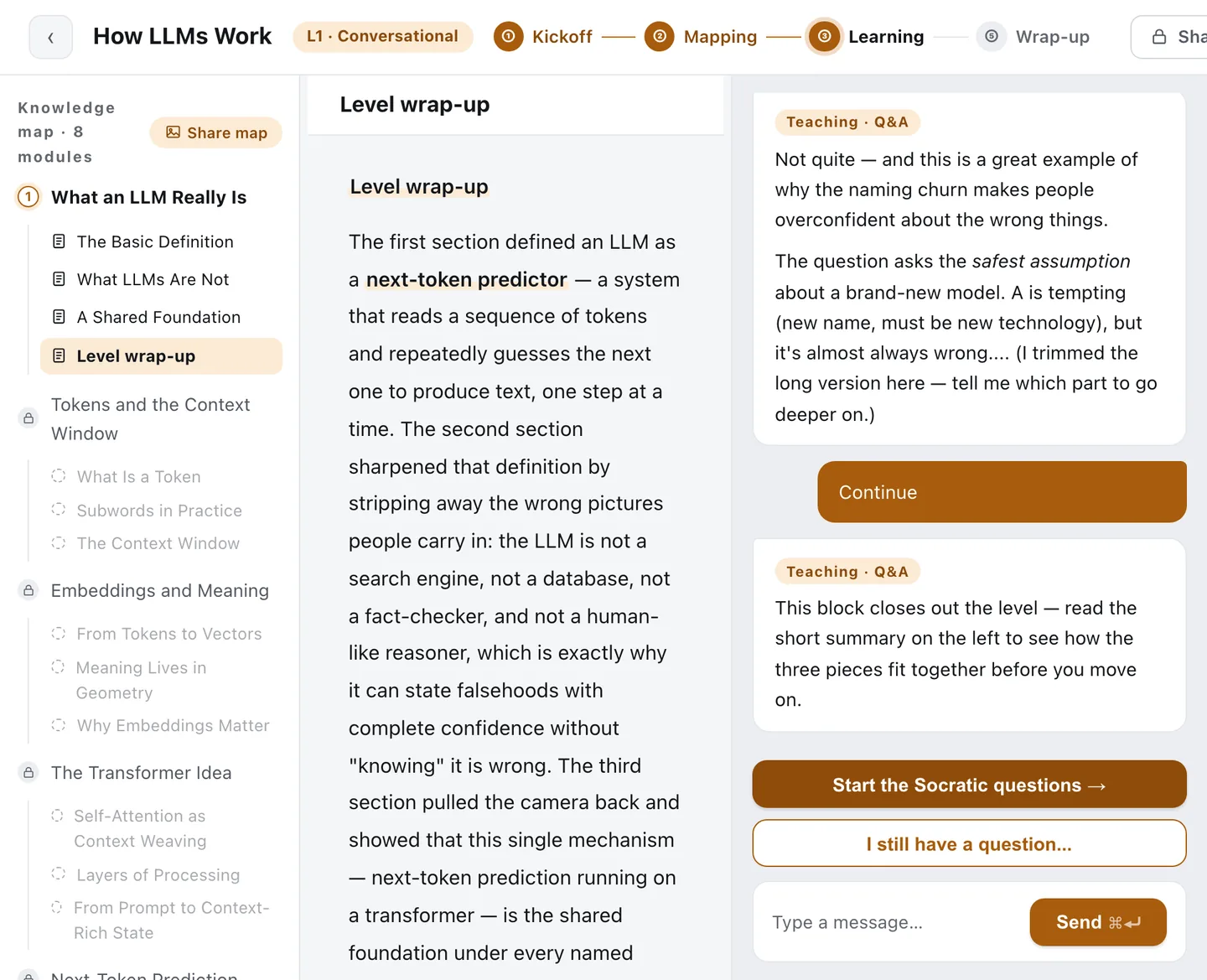
Here Packlore stops explaining and **starts asking**: put the concept you just learned in your own words, give an example of it, say how two ideas differ. It keeps pulling on your answers until it is satisfied you understand the thing rather than remember the sentence.
You are not aiming for a model answer. Say it your way. If you get it wrong it will tell you; if you are vague it will push. And if a question really stumps you, there is a line above the input box: tap **"Let AI answer this follow-up"**, read its answer, and carry on from there.
When the questions are done, tap **"Go to the quiz gate"**. The quiz is the last gate of the chapter:
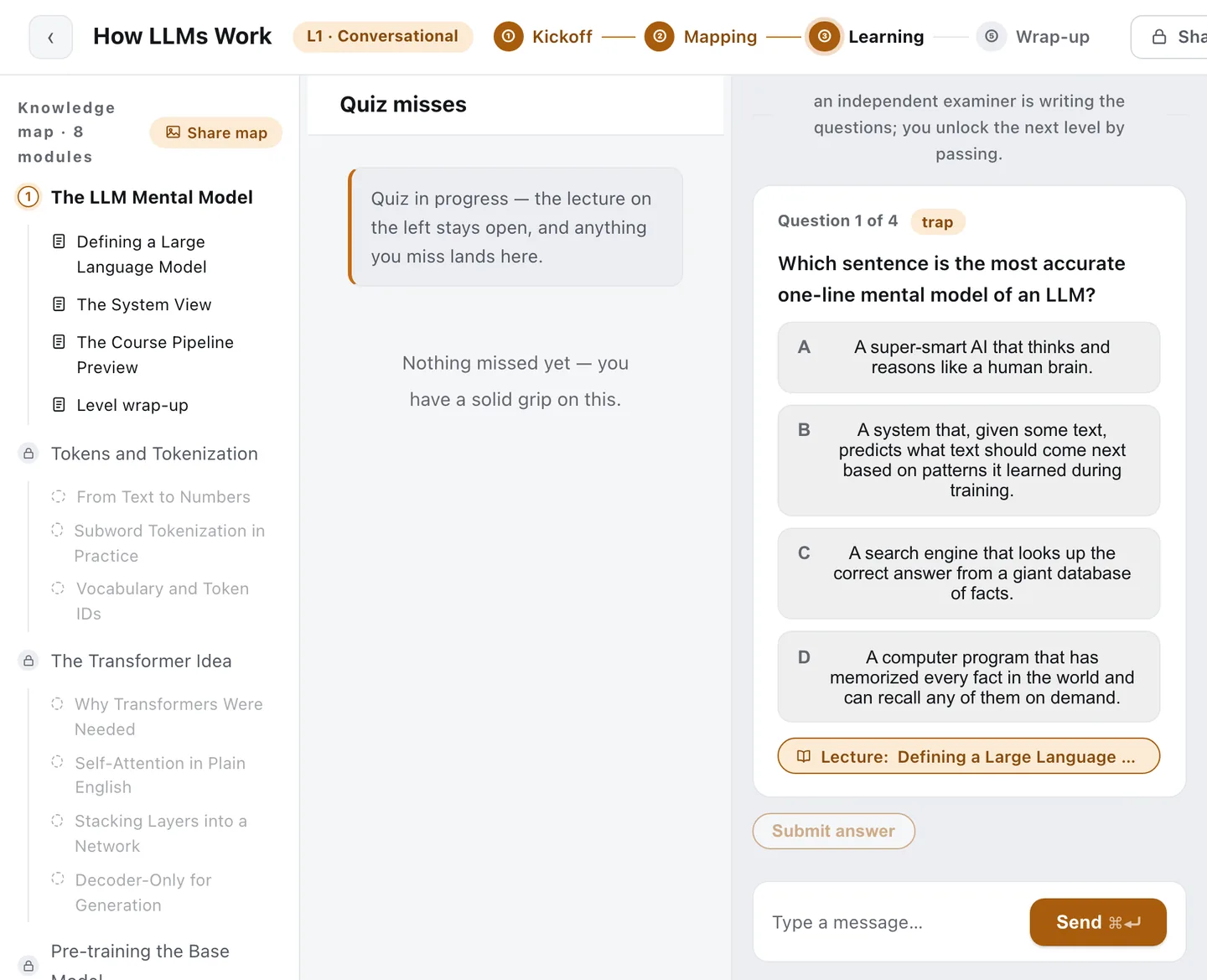
- A handful of questions, one at a time. The conversation shows which question you are on and how many there are, and each one has a "find it in the lesson" button.
- **You may go back through the lesson on the left while answering.** Packlore takes the view that finding where something was said is itself learning.
- The questions come from a separate question-setting AI, so the model that taught you is not also marking you.
Pass the quiz and the chapter is done: the next one unlocks and the first piece of its lesson starts being written.
What passing leaves behind
Every time you pass a chapter, Packlore writes you a set of **notes** for it - you do not have to keep your own. The notes are a recap of the chapter's key points. You will find them under your notes on the left of the learning page, and you can turn one into a share card.
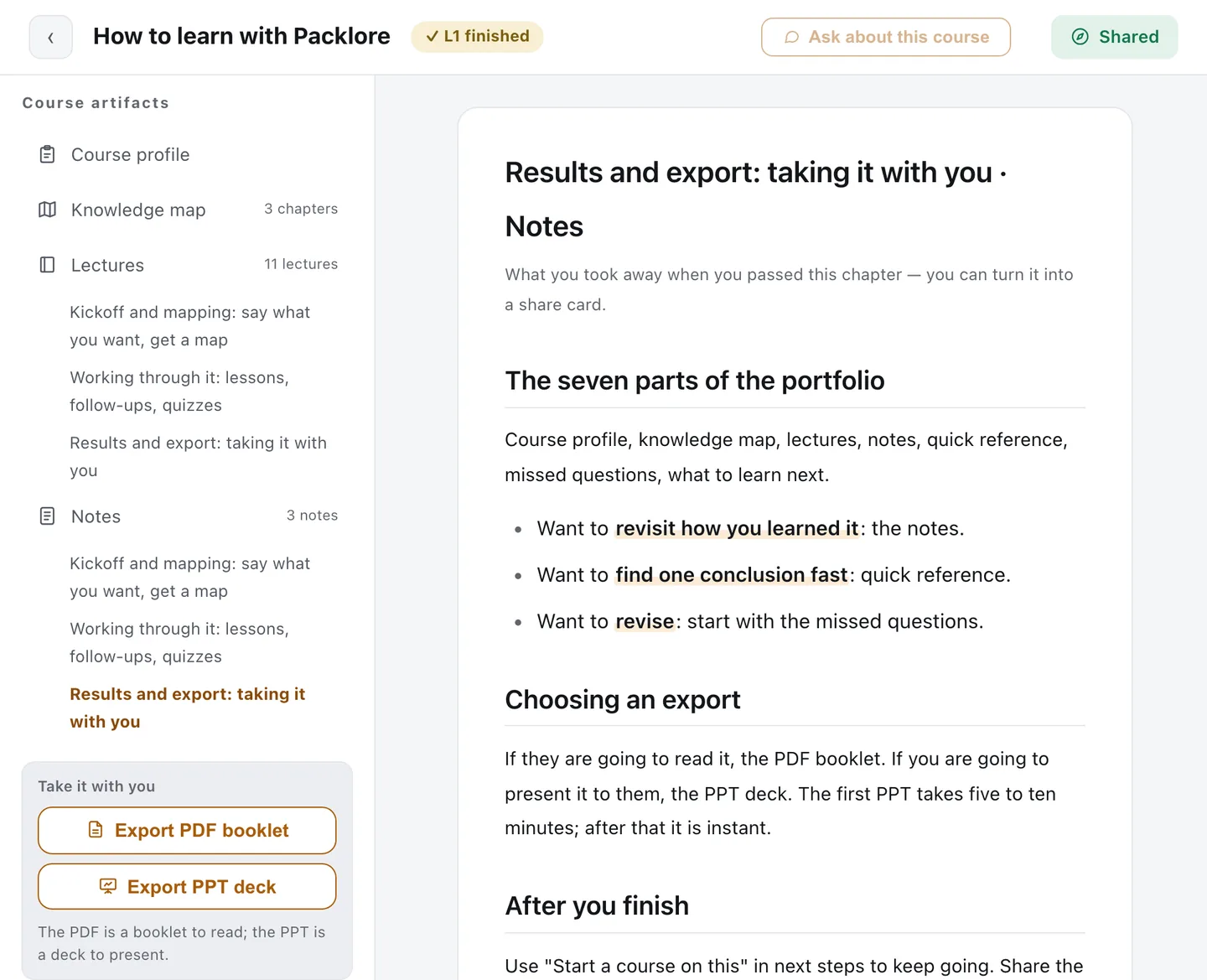
Those are the notes for chapter 3 of the course you are reading, opened from its portfolio. On a course you work through, nobody writes them by hand: passing the chapter produces them.
Anything you got wrong, in the quiz or in the checks between pieces, is filed under **Missed questions**, by chapter. When it is time to revise, that list is much faster than rereading.
About your **allowance**: the bottom left of the page shows your daily free allowance and your personal balance. Writing lessons, setting questions and reacting to your answers all draw on it. The free allowance goes first, then your balance. When both are gone, learning pauses and tells you so, and **the free allowance resets at midnight**. Nothing is lost. Inviting friends adds to your balance.
A course can be spread over many days. Back on the home page, a course in progress shows its progress; tap Continue and you are back where you stopped. Once every chapter is passed, you are into what chapter 3 covers: wrap-up, the portfolio and exporting.
Study notes
The rhythm of every chapter
Lesson (in pieces, each with a short check) - Socratic questions (in your own words) - quiz (you may reread) - passed.
Four things to remember from this chapter
- **After each piece you have two choices**: "Got it, continue", or "I have a question..." and ask as much as you like. Questions do not cost you progress.
- **The questions exist to make you say it yourself.** Stuck? Tap "Let AI answer this follow-up".
- **You may reread during the quiz.** Finding the source is learning too.
- **Notes and missed questions are automatic.** Passing writes the notes; missing a question files it.
About the allowance
There is a free allowance every day. When it runs out it resets at midnight, and your progress is untouched.
Level 3 · Results and export: taking it with you
Know what a finished course leaves you with, and be able to export it as a PDF and a PPT
Wrap-up and the portfolio
When the last chapter is passed, the course moves into **wrap-up**. Packlore takes a few minutes to produce two summarising pieces for the course as a whole, and then it is finished.
After that you get a short celebration page, and behind it is the course's **portfolio**. From then on, tapping the course under "Finished" on the home page opens the portfolio directly. While you are still learning, your notes and missed questions live on the left of the learning page. The portfolio's contents list, **Course artifacts**, holds up to seven sections:
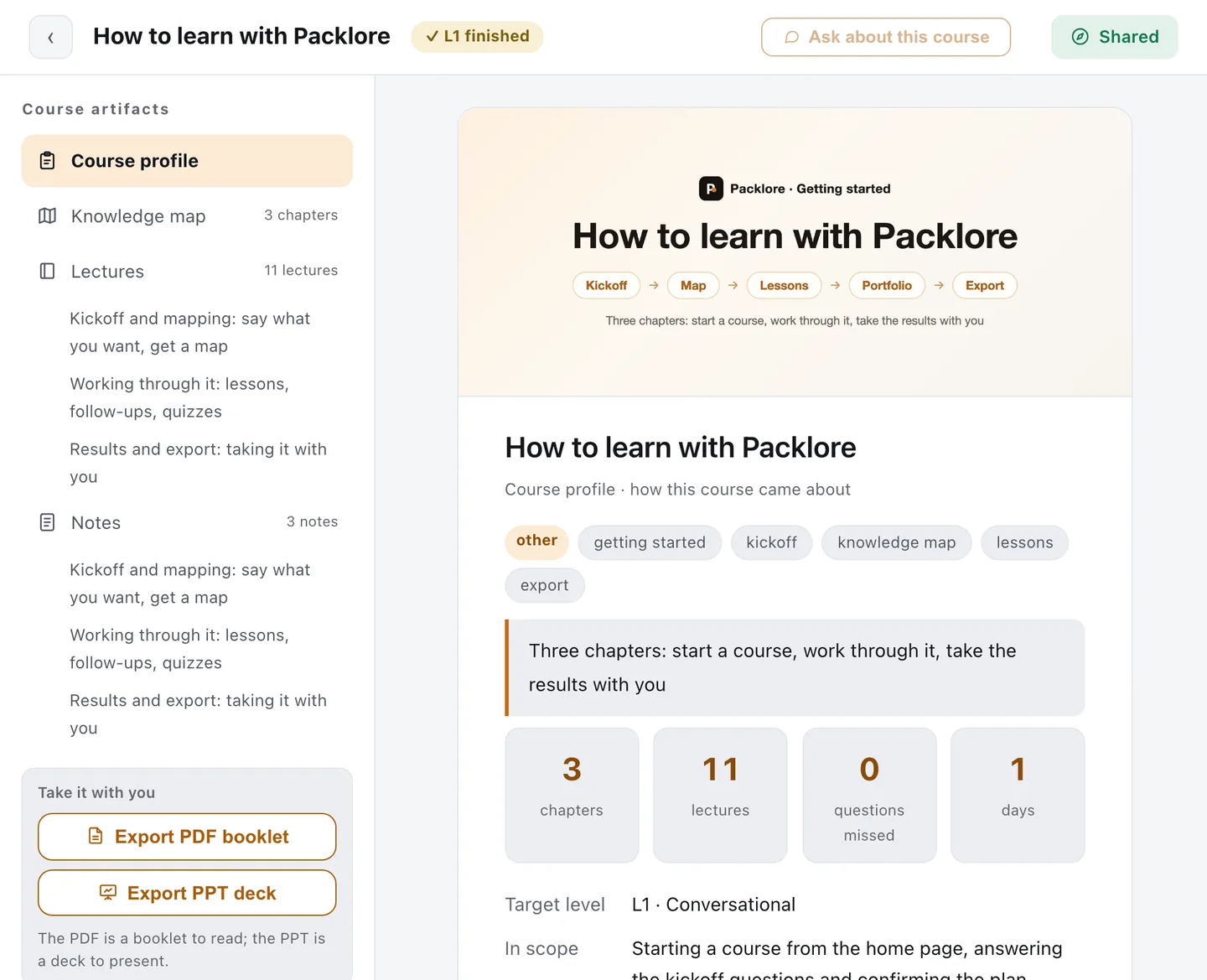
- **Course profile**: how this course came about. Target level, what was in and out of scope, how many days it took, how many chapters and lectures.
- **Knowledge map**: the original map you learned from.
- **Lectures**: every lesson from every chapter, in order.
- **Notes**: the recap written each time you passed a chapter.
- **Quick reference**: a single condensed page produced at wrap-up, for looking things up. Notes are for revisiting how you learned it; quick reference is for finding one conclusion fast.
- **Missed questions**: everything you got wrong along the way, filed by chapter. This is where revision starts.
- **What to learn next**: where you can go after this course.
The last three only appear when there is something in them. The screenshot above is this very course's portfolio, and since a hand-written guide has no quiz behind it, its contents list stops at Notes. A course you work through yourself will have all seven.
The page you are reading right now is this sample course's public results page, and it is built the same way: contents on the left, body on the right.
Exporting to PDF and PPT
Below the contents list sits **Take it with you**, with two buttons:
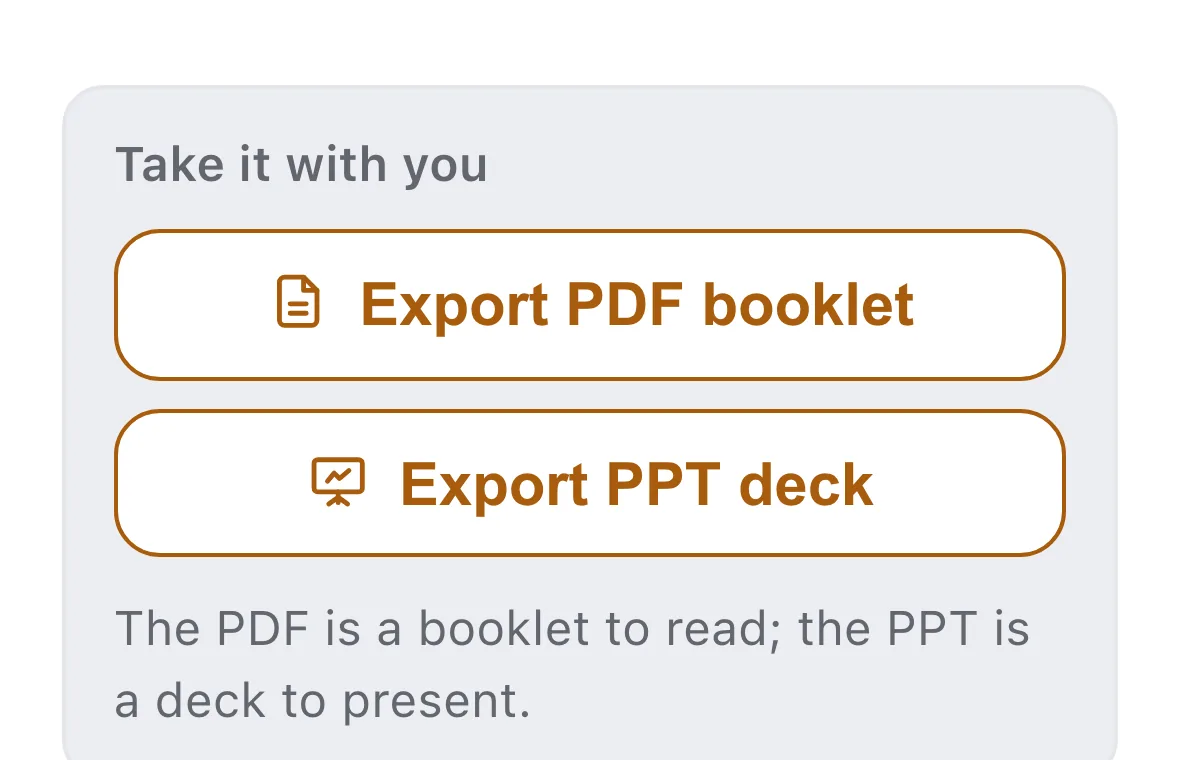
- **Export PDF booklet**: lays the course profile, the knowledge map, the lectures, the notes and the quick reference into a booklet with a cover. Good for keeping, printing, or sending to somebody to read. It is generated in the browser, usually in under a minute.
- **Export PPT deck**: distils the course into slides you could stand up and present - a through-line, chapters, one core point per slide. Good for a talk, a report, or teaching someone else.
A simple rule: **if they are going to read it, PDF. If you are going to present it to them, PPT.**
The first PPT export takes five to ten minutes. A deck is not the lessons cut into pages: an AI reorganises the whole course, settling on a one-line through-line, then deciding what each slide argues and whether it lands best as points, a comparison or a flow - and a reviewing AI checks the result. Once it exists it is saved, and later exports are instant.
You can try both right now. This sample course's results page has the same export section, and both files download, so you can see what you would get. When you finish a course of your own, you get the same thing with your subject in it.
Sharing, and what comes next
**Sharing.** The Share control on a course page publishes it to **Discover**: other people can see the course description and the knowledge map, and they can learn from your map directly instead of going through kickoff and mapping themselves. You choose separately whether your lessons and notes go public too. Everything is private by default - if you do not share, nobody can see your course.
**What comes next.** The **What to learn next** section of the portfolio lists directions to go after this course, each with why it is worth it and how to get into it. Tap "Start this course" and Packlore opens a new course already knowing what you have covered, so you do not have to introduce yourself from scratch.
**On your phone.** Packlore has iOS and Android apps, and your account and progress are the same across them and the web. Pass a chapter on the commute, pick it up at your desk. You will find "Get the app" in the home page sidebar.
That is the whole arc, from kickoff to export. Now tap **"Start your own"** at the bottom of this page, bring a question you actually want answered, and start your first one.
Study notes
The seven parts of the portfolio
Course profile, knowledge map, lectures, notes, quick reference, missed questions, what to learn next.
- Want to **revisit how you learned it**: the notes.
- Want to **find one conclusion fast**: quick reference.
- Want to **revise**: start with the missed questions.
Choosing an export
If they are going to read it, the PDF booklet. If you are going to present it to them, the PPT deck. The first PPT takes five to ten minutes; after that it is instant.
After you finish
Use "Start this course" under What to learn next to keep going. Share the course to Discover if you want others to learn along your path.